Adding Addresses to the Konica Minolta Copiers
You can add email addresses to scan to at the copier, but it’s much easier to access the address book from your computer and add them there. I recommend assigning one person in your department to add your current team and new staff as they onboard.
- Find the IP address of the copier, it should be on a label on the machine, if it’s not there yet, reach out to Megan Dietz at psych@medschool.zendesk.com or be patient, it will be there soon.
- Open a browser of choice and enter the IP address into the URL field. Hit enter.
- If it warns you that you are trying to access an insecure site, select Advanced and go there anyway.
- Right now we have a variety of copier models throughout DOP, as some are on loan until our “forever” copiers arrive. These are directions for the Konica Minolta Biz Hub C650. If you have a different model, you can click around to find what you are looking for on the other models, as they are all very similar. You can also google how to do it for your exact model.
- When you log in, this is the first screen you see:
- Select Store Address then Address Book.
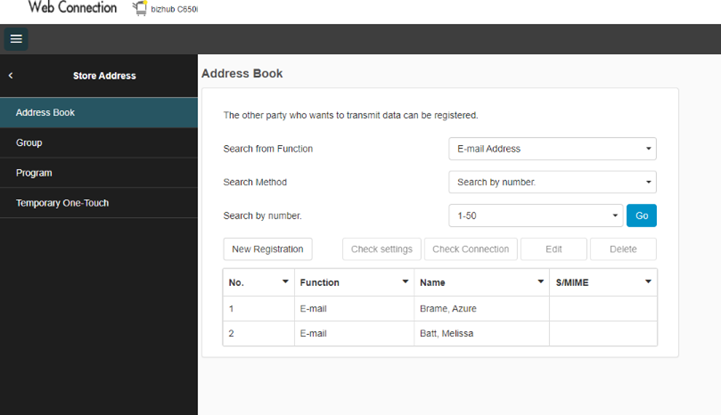
- To add someone new, click on New Registration.
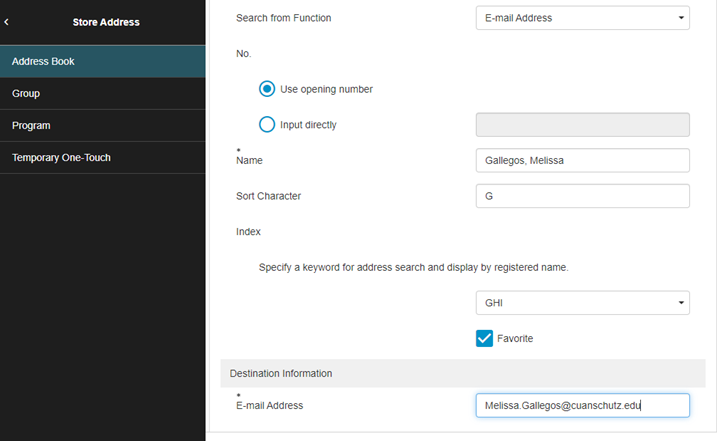
- Keep Search from Function as E-mail Address.
- Keep Use opening number
- Type in the name, we suggest a consistent format of Last, First.
- Sort Character can be the first letter of the last name or leave blank.
- Choose the correct keyword for an address search, again, first letter of last name.
- In the Specify a keyword for address search and display by registered name, choose the letter category for the first letter of your last name.
- Check the Favorite box if you want it on the list of favorites on the copier. This is for the most common email addresses you will be sending scans to. For someone you scan-email to a couple times a year, no need to check this box, but you can still add them. You will search for them by their last name the few times you scan-email to them.
- Type in the email address. We highly recommend copying and pasting the email addresses to avoid human error when typing them in.
- Leave everything else as is.
- Then select OK.
If you need any assistance, please contact psych@medschool.zendesk.com.